
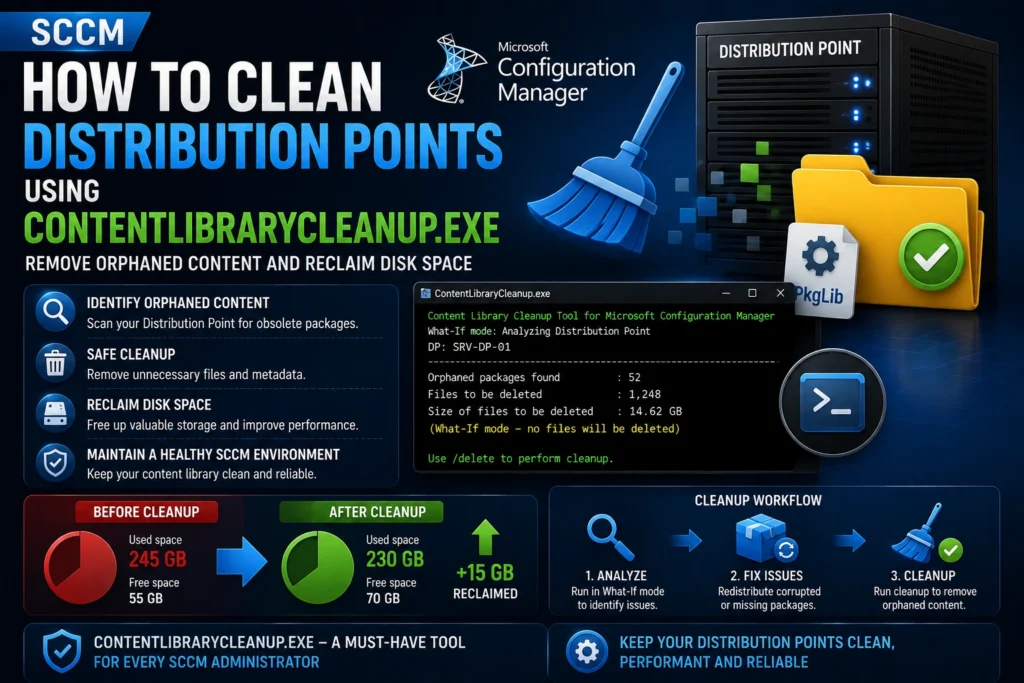
Over time, deleting, revising, or moving packages in SCCM can leave orphaned content on your Distribution Points (DPs). This unnecessary data gradually consumes disk space and can eventually affect content distribution performance.
To address this issue, Microsoft provides ContentLibraryCleanup.exe, a utility specifically designed to identify and remove orphaned content from SCCM Distribution Points.
Prerequisites
Before running the tool:
- You must have full administrative permissions on both the SCCM hierarchy and the target Distribution Point.
- The tool can be executed locally on the Distribution Point or remotely, provided you have the required network access.
- Microsoft strongly recommends starting with What-If mode, which simulates the cleanup without deleting any files.
Step 1 – Run ContentLibraryCleanup.exe in What-If Mode
Tool Location
The executable is located in the following folder on your Primary Site Server:
F:\Program Files\Microsoft Configuration Manager\cd.latest\SMSSETUP\TOOLS\ContentLibraryCleanup\Run the Command
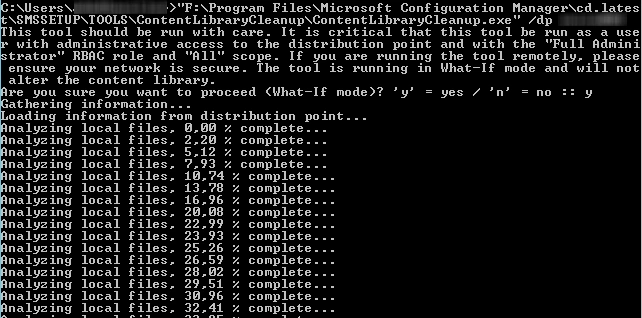
Open an elevated Command Prompt and execute:
ContentLibraryCleanup.exe /dp <DistributionPointNameOrIPAddress>Example:
ContentLibraryCleanup.exe /dp SRV-DP-01The tool will ask for confirmation before starting the analysis.
Type:
yand press Enter.
Expected Result
The tool will:
- Scan the Distribution Point for orphaned packages.
- Estimate how much disk space can be reclaimed.
- Generate a report without deleting any files.
Because this is What-If mode, no changes are made to the Distribution Point.
Handling Errors and Corrupted Packages
During the analysis, you may encounter errors such as:
“Some packages must be redistributed before cleanup can continue.”
This indicates that one or more packages are inconsistent or corrupted.
Resolution Steps
- Open the Configuration Manager Console.
- Navigate to:
Monitoring → Distribution Status → Distribution Point Configuration Status- Select the affected Distribution Point.
- Click Details.
- Sort by the Message column to group similar errors.
- Identify the affected packages.
- Redistribute those packages manually.
- Run What-If mode again after redistribution has completed.
Step 2 – Perform the Actual Cleanup
Once the simulation completes without errors, you can safely remove the orphaned content.
Cleanup Command
ContentLibraryCleanup.exe /dp <DistributionPointName> /deleteExample:
ContentLibraryCleanup.exe /dp SRV-DP-01 /delete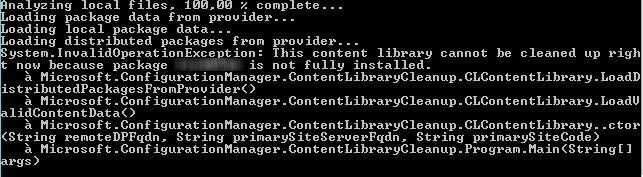
What This Command Does
The cleanup operation will:
- Permanently delete the orphaned content identified during the What-If analysis.
- Generate a log file containing every deleted item.
- Display the total amount of reclaimed disk space.
Recommendation
🛡 Keep a copy of the generated log file for future auditing or troubleshooting purposes.
Best Practices for Cleaning Distribution Points
- Include Distribution Point cleanup in your regular SCCM maintenance schedule.
- Perform cleanup operations during maintenance windows or periods of low activity.
- Regularly monitor the health of the SCCM Content Library from the Configuration Manager console.
What’s Next?
If you’re still designing your SCCM infrastructure, you may also be interested in our guide on creating and configuring Distribution Points to build a solid and scalable environment.
Conclusion
ContentLibraryCleanup.exe is an essential Microsoft utility for maintaining healthy SCCM Distribution Points.
When used correctly—starting with What-If mode, resolving detected issues, and then performing the actual cleanup—it helps reclaim disk space, eliminate orphaned content, and prevent future distribution problems.
Regular use of this tool is a simple yet effective way to keep your SCCM infrastructure clean, reliable, and performing at its best.