
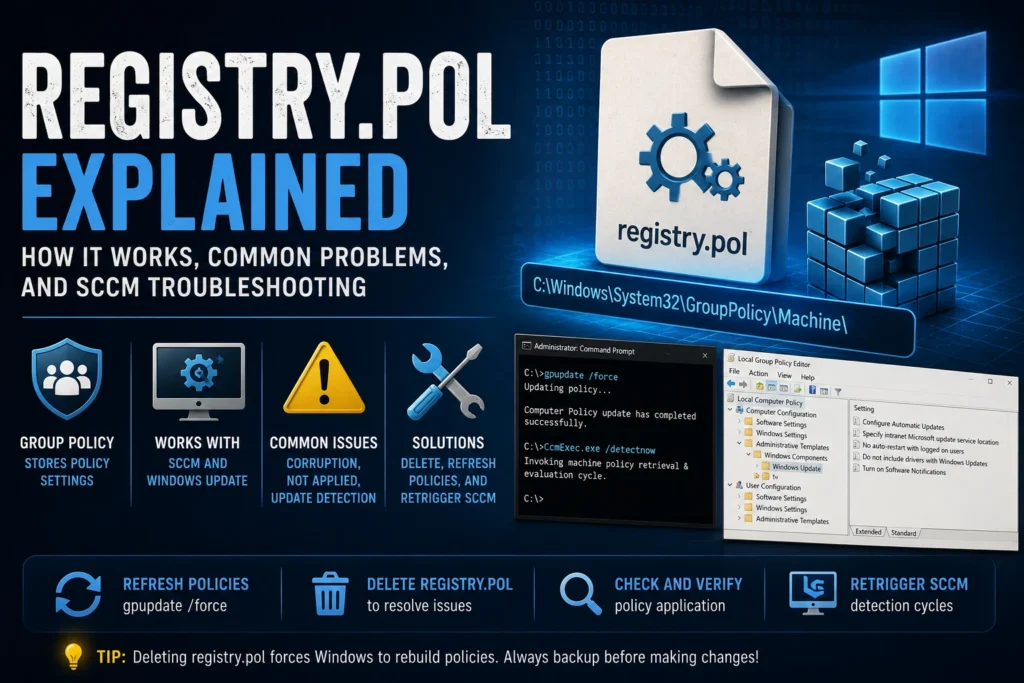
The registry.pol file is a key component of Windows Group Policy management and plays an important role in environments using Microsoft Endpoint Configuration Manager (SCCM). It stores policy settings applied to computers and users. In some situations, deleting the registry.pol file can help restart SCCM update detection and resolve Group Policy-related issues.
In this guide, we’ll explore the purpose of the registry.pol file, how it works with SCCM, the problems it can cause, and the most effective ways to troubleshoot them.
What Is the registry.pol File?
The registry.pol file is a binary file that stores Group Policy settings configured through either the Local Group Policy Editor (gpedit.msc) or Active Directory. Windows reads this file to apply policy settings to the registry for both users and computers.
Two registry.pol files typically exist:
- Computer Policies:
C:\Windows\System32\GroupPolicy\Machine\registry.pol - User Policies:
C:\Windows\System32\GroupPolicy\User\registry.pol
In Active Directory environments, these files may also exist within the SYSVOL folder on domain controllers.
In SCCM environments, registry.pol can interact with Windows Update policies and influence SCCM client behavior, particularly for software update detection and deployment.
How registry.pol Works with SCCM
Whenever a Group Policy is applied, Windows reads the settings stored in registry.pol and writes them into the Windows Registry.
Within SCCM environments, these policies can affect:
- Windows Update for Business (WUFB) configuration
- Software update deployment
- SCCM client compliance settings
The file is updated whenever changes are made through the Group Policy Editor and is applied after a restart or by running:
gpupdate /forceCommon registry.pol Issues
Although essential for Group Policy management, registry.pol can occasionally cause problems.
SCCM Does Not Detect Software Updates
Problem
SCCM clients fail to detect available software updates.
Possible Solutions
Verify that the appropriate update policies are being applied:
GPRESULT /H C:\temp\gpresult.htmlDelete the registry.pol file and restart the Windows Update service:
del /F /Q C:\Windows\System32\GroupPolicy\Machine\registry.pol
net stop wuauserv && net start wuauserv
Force an SCCM software update detection cycle:
C:\Windows\CCM\CcmExec.exe /detectnowGroup Policies Are Not Applied
Problem
Group Policy settings are ignored or never applied.
Possible Solutions
Verify that the registry.pol file exists and contains the expected settings using LGPO.exe:
LGPO.exe /parse /m C:\Windows\System32\GroupPolicy\Machine\registry.polForce a Group Policy refresh:
gpupdate /forceCheck whether another Group Policy Object (GPO) is overriding your settings:
gpresult /h report.htmlCorrupted registry.pol Affecting SCCM
Problem
The registry.pol file has become corrupted, preventing Group Policy settings from being applied correctly and affecting SCCM functionality.
Possible Solutions
Delete the corrupted file:
del /F /Q C:\Windows\System32\GroupPolicy\Machine\registry.polDelete User\registry.pol as well if necessary.
Reapply Group Policy:
gpupdate /forceRestart SCCM software update detection:
Invoke-WmiMethod -Namespace root\ccm -Class sms_client -Name TriggerSchedule "{00000000-0000-0000-0000-000000000113}"How to Modify registry.pol
Directly editing registry.pol is generally not recommended, but you can analyze its contents safely.
View the File Contents
Use LGPO.exe to display all stored policy settings:
LGPO.exe /parse /m C:\Windows\System32\GroupPolicy\Machine\registry.polModify Policies Properly
If a policy needs to be removed or changed, the recommended approach is to use gpedit.msc instead of editing the file manually.
Refresh SCCM Policies After Modification
After modifying or deleting registry.pol, you may want to trigger SCCM policy retrieval:
Invoke-WmiMethod -Namespace root\ccm -Class sms_client -Name TriggerSchedule "{00000000-0000-0000-0000-000000000021}"Best Practices
- Back up the file before making any changes:
copy C:\Windows\System32\GroupPolicy\Machine\registry.pol C:\Backup\registry_backup.pol- Verify NTFS permissions to prevent accidental deletion or modification.
- Always use official Microsoft tools such as gpedit.msc or LGPO.exe whenever possible.
- Monitor Event Viewer (
eventvwr.msc) for Group Policy-related errors. - Monitor SCCM client logs to ensure policies and software updates are applied correctly:
C:\Windows\CCM\Logs\PolicyAgent.logConclusion
The registry.pol file is a critical part of Windows Group Policy management and has a direct impact on SCCM behavior.
Corruption or accidental deletion can lead to Group Policy failures, software update detection issues, and client management problems.
By understanding how registry.pol works and following the recommended troubleshooting techniques, administrators can quickly resolve these issues and maintain a healthy, reliable Digital Workplace environment.