
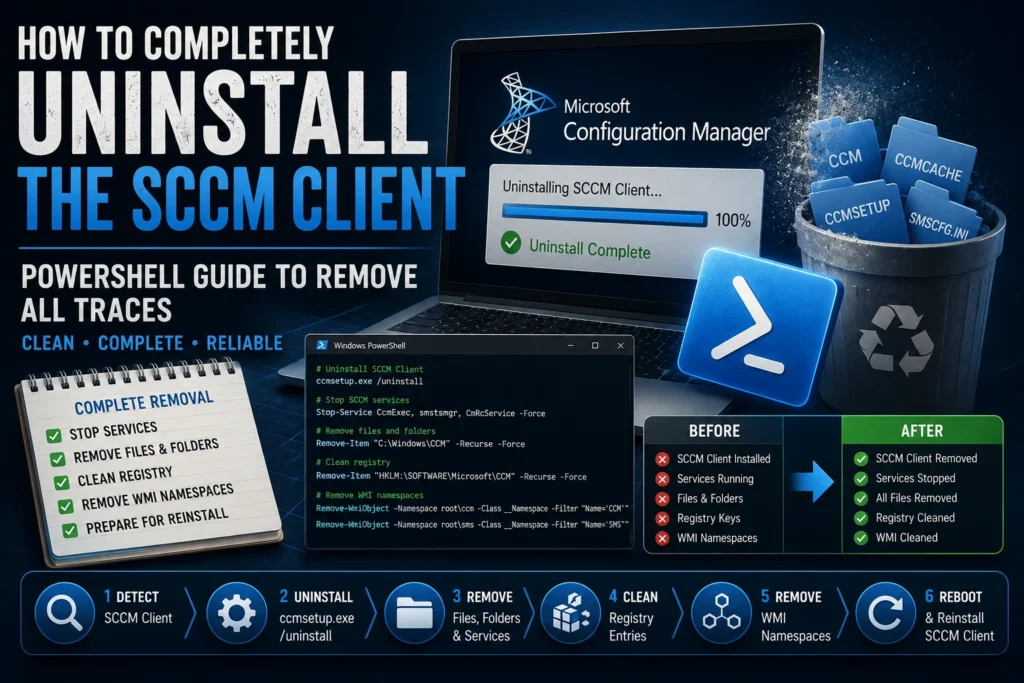
The SCCM client (System Center Configuration Manager) is a critical component for endpoint management in enterprise environments. However, there are situations where the client becomes corrupted or stops functioning correctly, making a complete reinstallation necessary.
Simply uninstalling the client through Windows is often not enough, as configuration files, registry entries, WMI namespaces, and cached data may remain on the system.
In this guide, we’ll show you how to completely remove the SCCM client using an automated PowerShell script.
Why Completely Remove the SCCM Client?
Several scenarios may require a full SCCM client removal:
- Corrupted client: The client no longer communicates correctly with the Management Point.
- Migration to a new version: A clean installation helps prevent upgrade conflicts.
- Deployment issues: Application or software update deployments consistently fail.
- Troubleshooting: The client must be rebuilt after repeated installation failures.
PowerShell Script to Completely Remove the SCCM Client
The following script uninstalls the SCCM client and removes all remaining traces from the operating system.
# Check whether the SCCM client is installed
$SCCMClient = Get-WmiObject -Namespace "ROOT\CCM" -Class "CCM_Client"

if ($SCCMClient) {
    Write-Output "SCCM Client detected. Starting uninstall..."

    # Uninstall SCCM client
    C:\Windows\ccmsetup\ccmsetup.exe /uninstall
    Start-Sleep -Seconds 60
}

# Stop SCCM services
$services = @("CcmExec", "smstsmgr", "CmRcService")

foreach ($service in $services) {
    Get-Service -Name $service -ErrorAction SilentlyContinue | Stop-Service -Force -ErrorAction SilentlyContinue
    Get-Service -Name $service -ErrorAction SilentlyContinue | Set-Service -StartupType Disabled -ErrorAction SilentlyContinue
}

# Remove SCCM folders
$folders = @(
    "C:\Windows\CCM",
    "C:\Windows\ccmcache",
    "C:\Windows\ccmsetup",
    "C:\Windows\SMSCFG.INI",
    "C:\Windows\System32\ccm",
    "C:\Windows\SysWOW64\ccm"
)

foreach ($folder in $folders) {
    if (Test-Path $folder) {
        Remove-Item -Path $folder -Recurse -Force -ErrorAction SilentlyContinue
    }
}

# Remove SCCM registry keys
$registryPaths = @(
    "HKLM:\SOFTWARE\Microsoft\CCM",
    "HKLM:\SOFTWARE\Microsoft\SMS",
    "HKLM:\SOFTWARE\Wow6432Node\Microsoft\CCM",
    "HKLM:\SOFTWARE\Wow6432Node\Microsoft\SMS"
)

foreach ($regPath in $registryPaths) {
    if (Test-Path $regPath) {
        Remove-Item -Path $regPath -Recurse -Force -ErrorAction SilentlyContinue
    }
}

# Remove SCCM WMI namespaces
$wmiNamespaces = @("ROOT\CCM", "ROOT\SMS")

foreach ($namespace in $wmiNamespaces) {
    if (Get-WmiObject -Namespace "ROOT" -Class __Namespace | Where-Object { $_.Name -eq $namespace.Split('\\')[-1] }) {
        Write-Output "Removing WMI namespace: $namespace"

        Remove-WmiObject -Namespace "ROOT" -Class __Namespace -Filter "Name='$($namespace.Split('\\')[-1])'" -ErrorAction SilentlyContinue
    }
}

Write-Output "SCCM Client successfully removed. A reboot is recommended."
Script Breakdown
1. Detect the SCCM Client
The script first checks whether the SCCM client is installed by querying the ROOT\CCM WMI namespace.
2. Uninstall the SCCM Client
If the client is detected, the script runs:
ccmsetup.exe /uninstalland waits for the uninstall process to complete.
3. Stop SCCM Services
The following services are stopped and disabled:
- SMS Agent Host (CcmExec)
- smstsmgr
- CmRcService
This prevents files from remaining locked during cleanup.
4. Remove Remaining Files
The script deletes:
- SCCM installation folders
- CCM cache
- Configuration files
- Remaining client binaries
Removing these files ensures that a future installation starts from a completely clean state.
5. Clean the Windows Registry
All major SCCM registry keys are deleted, including both native and Wow6432Node entries.
This prevents configuration conflicts during future client installations.
6. Remove WMI Namespaces
Finally, the script removes:
ROOT\CCMROOT\SMS
Removing these namespaces eliminates stale WMI data that could interfere with SCCM client health.
7. Restart the Device
A reboot is strongly recommended to:
- Release locked files
- Complete WMI cleanup
- Prepare the device for a fresh SCCM client installation
Automatically Reinstall the SCCM Client
Once the cleanup is complete, you can reinstall the SCCM client using a command similar to:
Start-Process -FilePath "\\SCCMServer\Source\ccmsetup.exe" -ArgumentList "/mp:SCCMServer SMSSITECODE=XYZ /logon" -NoNewWindow -WaitReplace:
SCCMServerwith your Management PointXYZwith your SCCM site code
Conclusion
Using this PowerShell script provides a reliable way to completely remove the SCCM client before performing a clean installation.
By removing services, files, registry entries, and WMI namespaces, administrators can eliminate many of the issues that commonly prevent successful client reinstallation.
For large enterprise environments, automating this process can significantly reduce troubleshooting time and improve the overall health of the SCCM infrastructure.