
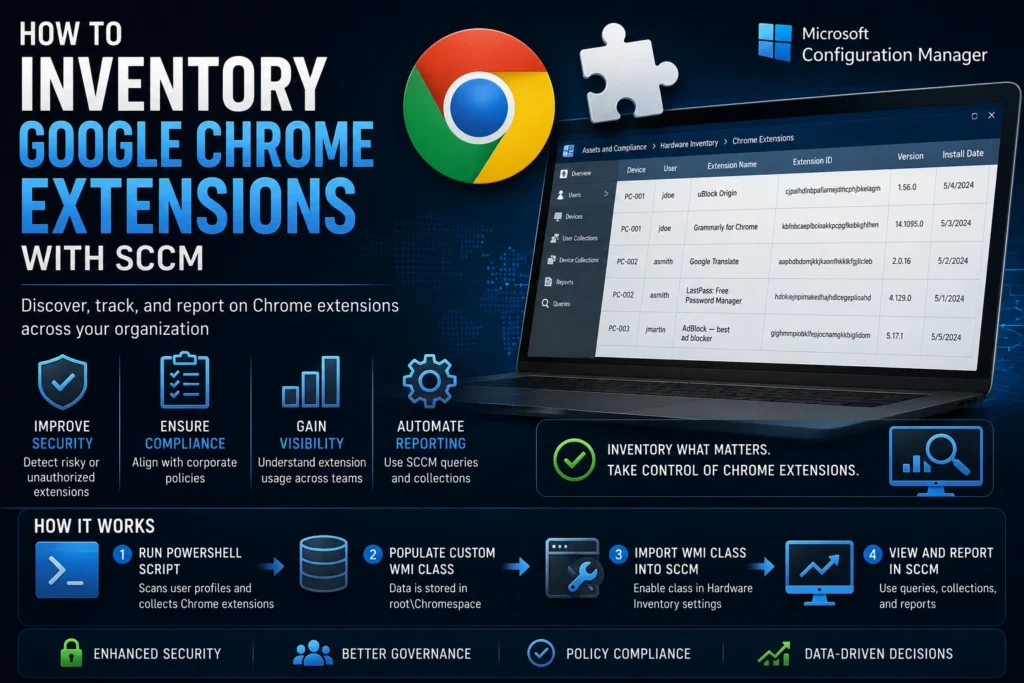
Whether or not you use Google Chrome Enterprise, knowing which Chrome extensions are installed across your devices can be extremely valuable. Maintaining an inventory of Chrome extensions not only provides visibility into real-world extension usage, but also helps you:
- Detect unauthorized or non-compliant extensions (blacklist).
- Automatically deploy approved extensions to targeted user groups.
- Identify extension usage by department, team, or business function.
However, collecting this information presents several technical challenges that must be addressed.
The Challenge
Chrome extensions have a few characteristics that make inventory more complicated:
- They do not appear in the standard list of installed applications.
- They are stored in the Windows Registry using extension IDs, not human-readable names.
- The data is stored separately within each user profile, making enterprise-wide inventory more difficult.
To overcome these limitations, we’ll use a PowerShell script that scans every local user profile, retrieves the installed Chrome extensions, and writes the results into a custom WMI class that can then be inventoried by Configuration Manager (SCCM/MECM).
Chrome Extension Inventory Script
The following script (originally written by Zach Sattler) performs the following tasks:
- Creates a custom WMI class named Chrome_Extensions.
- Scans every local user profile.
- Detects all installed Google Chrome extensions.
- Collects key information including:
- Extension ID
- User profile
- Installation date
- Extension name
- Version
# (Original PowerShell script unchanged)Note: The original PowerShell script is intentionally left unchanged, as PowerShell code does not require translation.
Import the Custom WMI Class into SCCM
Once the script has populated the custom WMI class, you can extend Configuration Manager Hardware Inventory to collect the data.
Steps
- Open the Configuration Manager Console.
- Navigate to:
Administration → Client Settings- Edit your Hardware Inventory settings.
- Click Set Classes…
- Connect to a device where the script has already been executed.
- Browse to:
root\Chromespace- Select the Chrome_Extensions class.
- Enable all desired properties.
- Deploy the updated Client Settings.
After the next hardware inventory cycle, SCCM will begin collecting Chrome extension information.
Querying Chrome Extensions in SCCM
Once hardware inventory has completed, you can create SQL queries or SCCM reports to identify:
- Devices with specific Chrome extensions installed.
- The most frequently used extensions across the organization.
- Unauthorized or blacklisted extensions.
- Extension deployment trends by department or collection.
For example, you could search for:
- Password managers
- AI browser extensions
- VPN extensions
- Remote access tools
- Developer utilities
This provides valuable visibility into software usage that is normally hidden from traditional inventory.
Benefits for Enterprise Environments
Maintaining a Chrome extension inventory provides several operational and security benefits:
- Improve security by detecting risky browser extensions.
- Verify compliance with corporate policies.
- Better understand how Chrome is used across the organization.
- Support audits and software governance initiatives.
- Automate reporting through SCCM collections and SQL reports.
Conclusion
Although Chrome extensions are not inventoried by default in Windows or Configuration Manager, this PowerShell-based approach makes it possible to build a comprehensive inventory across all managed endpoints.
By combining a custom WMI class with SCCM Hardware Inventory, administrators gain full visibility into installed browser extensions and can improve security, compliance, and Digital Workplace governance.