
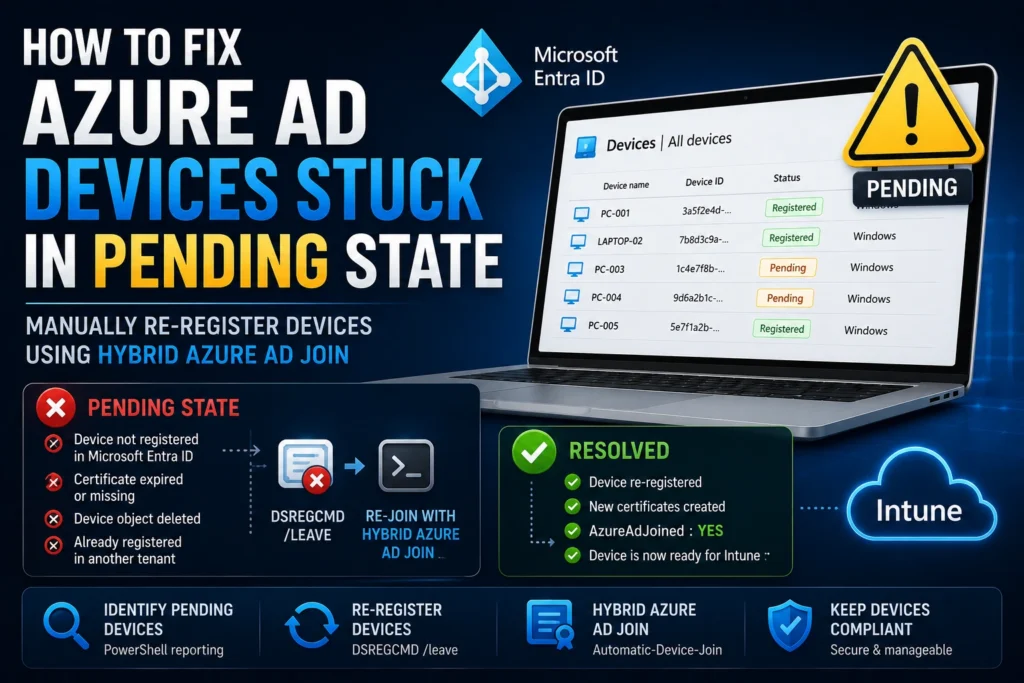
Devices shown as Pending in Azure AD are synchronized with Microsoft Entra ID (formerly Azure Active Directory) but have not completed the device registration process. A device can remain in this state for several reasons:
- The device has been offline for an extended period and its Azure AD device registration certificate has expired.
- Someone manually deleted the device registration certificate.
- Someone manually deleted the device object from the Microsoft Entra admin center.
- The device is already registered in another Microsoft Entra tenant.
Fortunately, this issue is usually easy to resolve by manually re-registering the device.
Manually Resolve an Azure AD Pending Registration
Step 1 – Leave Azure AD
On the affected device, open an elevated Command Prompt and run:
DSREGCMD /leaveAfter the command completes, verify that the following certificates have been removed from the Local Computer > Personal certificate store:
- MS-Organization-Access
- MS-Organization-P2P-Access [20xx]
Then verify that the device has been successfully unregistered by running:
dsregcmd /statusStep 2 – Re-register the Device Using Hybrid Azure AD Join
On the target device:
- Open Task Scheduler as an administrator.
- Navigate to:
Task Scheduler Library > Microsoft > Windows > Workplace Join- Manually run the following scheduled task:
Automatic-Device-Join
Once the task completes, verify that the following certificates have been recreated in the Local Computer Personal certificate store:
- MS-Organization-Access
- MS-Organization-P2P-Access [20xx]
Finally, run the following command again:
dsregcmd /statusConfirm that the following value is displayed:
AzureAdJoined : YESThis confirms that the device has successfully rejoined Microsoft Entra ID.
How to Find All Devices in Pending State
You can list every Hybrid Azure AD device currently stuck in the Pending state using the following PowerShell command:
Get-AzureADDevice -All $true |
Where-Object {
    ($_.DeviceTrustType -eq "ServerAd") -and
    ($_.ProfileType -ne "RegisteredDevice") -and
    (-not $_.AlternativeSecurityIds)
} |
Select-Object AccountEnabled,
              ObjectId,
              DeviceId,
              DisplayName,
              DeviceOSType,
              DeviceOSVersion,
              DeviceTrustType |
Export-Csv pendingdevicelist-summary.csv -NoTypeInformation
This command exports all affected devices to a CSV file, making it much easier to identify and remediate them.
Azure AD Pending Registration: Conclusion
Devices stuck in the Pending state can result from several different scenarios, but the most common cause is simply that the device has not connected to the corporate environment for a long time.
Before starting remediation, it’s a good idea to filter out inactive devices. This provides a clearer picture of the number of endpoints that genuinely require attention.
Although Pending registrations should not be ignored, they typically affect only a small percentage of devices within a well-maintained Microsoft Entra ID and Intune environment.