
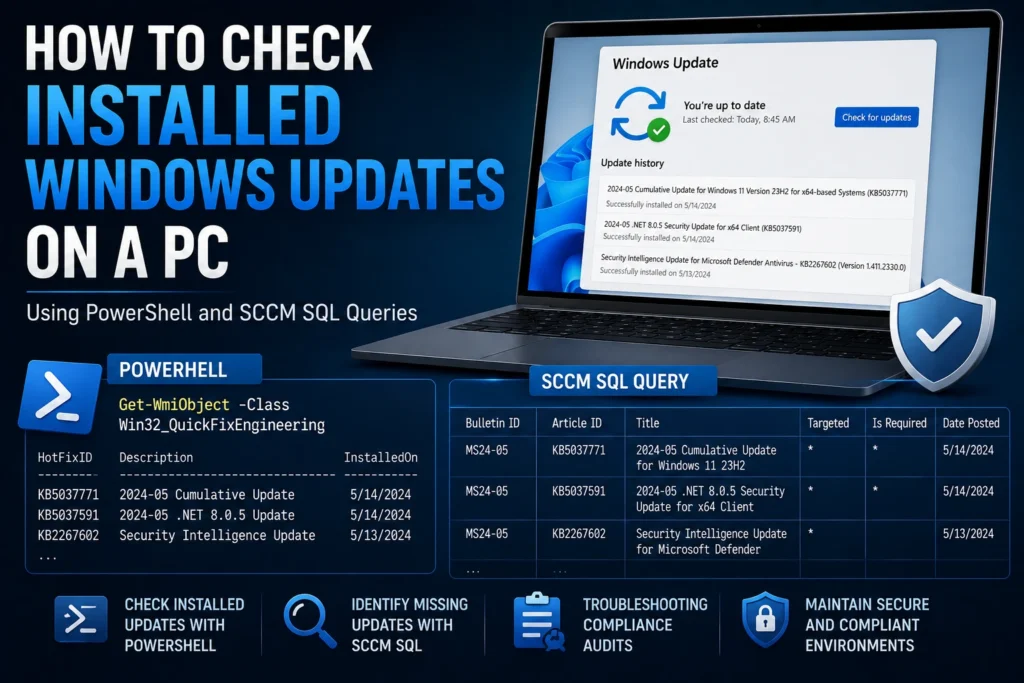
When troubleshooting a Windows issue or performing a compliance audit, you may need to determine which Windows updates are installed on a device. Whether you’re working locally or remotely, several methods are available depending on the scenario: Command Prompt, PowerShell, or SQL queries against your SCCM database.
In this article, we’ll cover how to:
- Check installed Windows updates using PowerShell.
- Identify missing updates through SCCM SQL queries.
Check Installed Windows Updates with PowerShell
Quick Method: wmic qfe list
wmic qfe list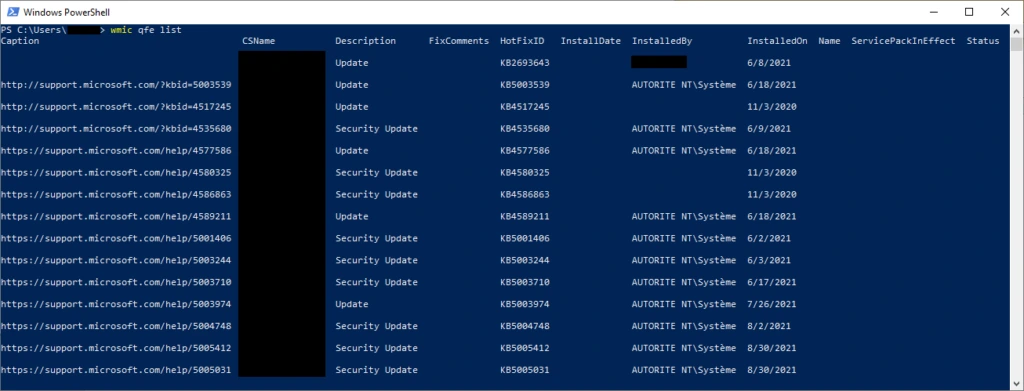
This command returns a list of installed hotfixes, including details such as the HotFix ID, installation date, and source. It is built into Windows and requires no additional modules.
💡 Modern Alternative: Get-WmiObject
Get-WmiObject -Class Win32_QuickFixEngineering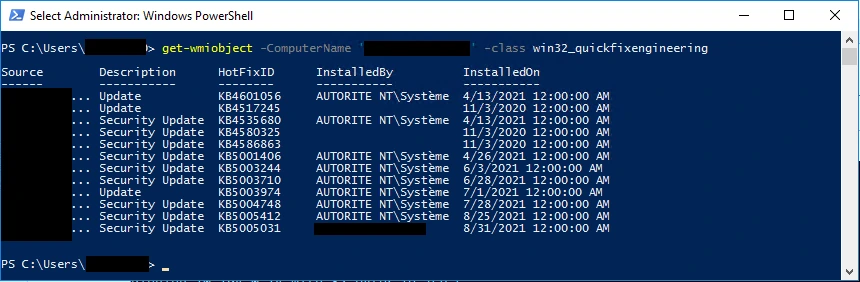
This command returns the same information as PowerShell objects, making it much easier to filter, sort, or export the results.
For example:
Get-WmiObject -Class Win32_QuickFixEngineering | Select-Object HotFixID, Description, InstalledOnYou can also query a remote computer (provided you have the required permissions):
Get-WmiObject -ComputerName "ComputerName" -Class Win32_QuickFixEngineering⚠️ Important
🔐 Before querying a remote computer, ensure that WinRM is enabled on the target device and that you have the necessary administrative permissions.
Check Missing Updates Using SCCM SQL Queries
Configuration Manager maintains detailed update compliance information for every managed device. This makes it possible to identify which updates are missing from a specific computer by querying the SCCM database.
Example SQL Query
SELECT
    CAST(DATEPART(yyyy, UI.DatePosted) AS varchar(255)) + '-' +
    RIGHT('0' + CAST(DATEPART(mm, UI.DatePosted) AS VARCHAR(255)), 2) AS 'Month Posted',
    UI.bulletinid AS 'Bulletin ID',
    UI.articleid AS 'Article ID',
    UI.Title,
    CASE WHEN CTM.ResourceID IS NOT NULL THEN '*' ELSE '' END AS 'Targeted',
    CASE WHEN UCS.Status = 2 THEN '*' ELSE '' END AS 'Is Required',
    UI.InfoURL AS 'Information',
    UI.DatePosted AS 'Date Posted',
    CDL.Deadline
FROM
    v_UpdateComplianceStatus UCS
    JOIN v_UpdateInfo UI ON UI.CI_ID = UCS.CI_ID
    LEFT JOIN v_CITargetedMachines CTM ON CTM.CI_ID = UCS.CI_ID AND CTM.ResourceID = UCS.ResourceID
    INNER JOIN v_CICategories_All CCALL ON CCALL.CI_ID = UCS.CI_ID
    INNER JOIN v_CategoryInfo CINF ON CCALL.CategoryInstance_UniqueID = CINF.CategoryInstance_UniqueID
        AND CINF.CategoryTypeName = 'UpdateClassification'
    JOIN v_R_System vrs ON vrs.ResourceID = UCS.ResourceID
    OUTER APPLY (
        SELECT MIN(a.EnforcementDeadline) AS Deadline
        FROM v_CIAssignment a
        JOIN v_CIAssignmentToCI atc ON atc.AssignmentID = a.AssignmentID AND atc.CI_ID = UCS.CI_ID
    ) CDL
WHERE
    vrs.Name0 = 'Computer_Name'
ORDER BY
    UI.DatePosted, UI.ArticleID
This query returns:
- Microsoft Bulletin ID and KB Article ID
- Whether the update is targeted to the device
- Whether the update is required
- The publication date of the update
- The deployment deadline (if one exists)

Conclusion
In addition to the Windows Update graphical interface, several advanced methods are available to accurately verify the update status of a device:
- PowerShell for quick local or remote verification.
- SQL Server for in-depth SCCM reporting, including missing updates.
These techniques are particularly useful for troubleshooting, compliance reporting, security audits, and post-incident investigations, helping administrators maintain healthy and compliant Windows environments.