
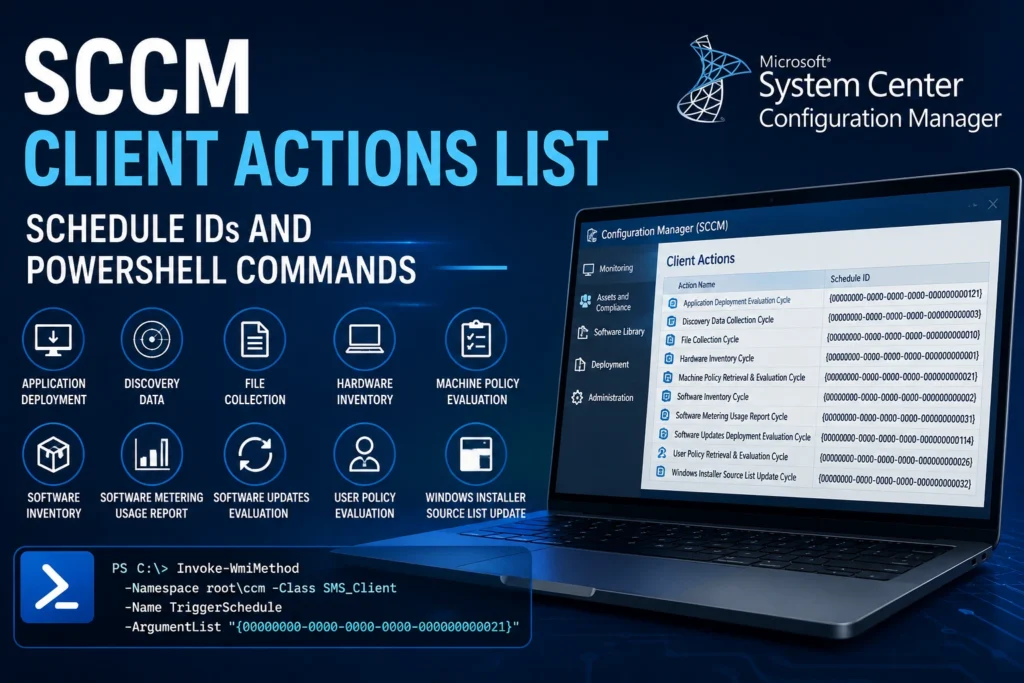
The Configuration Manager (SCCM) client provides 10 built-in actions accessible through the client application’s properties. If these actions are not available in the client interface, it may indicate that the SCCM client is unhealthy or improperly installed.
Each of these actions can also be triggered manually from an SCCM-managed device using the methods described below.
SCCM Client Actions List
The following actions are available:
- Application Deployment Evaluation Cycle
- Discovery Data Collection Cycle
- File Collection Cycle
- Hardware Inventory Cycle
- Machine Policy Retrieval & Evaluation Cycle
- Software Inventory Cycle
- Software Metering Usage Report Cycle
- Software Updates Deployment Evaluation Cycle
- User Policy Retrieval & Evaluation Cycle
- Windows Installer Source List Update Cycle
Action Identifiers (Schedule IDs)
Each SCCM client action is associated with a unique Trigger Schedule ID that can be used in PowerShell scripts to launch the corresponding action.
| Schedule ID | Action Name |
|---|---|
{00000000-0000-0000-0000-000000000021} |
Machine Policy Retrieval & Evaluation |
{00000000-0000-0000-0000-000000000022} |
Machine Policy Evaluation |
{00000000-0000-0000-0000-000000000001} |
Hardware Inventory |
{00000000-0000-0000-0000-000000000002} |
Software Inventory |
{00000000-0000-0000-0000-000000000003} |
Discovery Data Collection |
{00000000-0000-0000-0000-000000000113} |
Software Updates Scan |
{00000000-0000-0000-0000-000000000114} |
Software Updates Deployment Evaluation |
{00000000-0000-0000-0000-000000000031} |
Software Metering Usage Report |
{00000000-0000-0000-0000-000000000121} |
Application Deployment Evaluation |
{00000000-0000-0000-0000-000000000026} |
User Policy Retrieval |
{00000000-0000-0000-0000-000000000027} |
User Policy Evaluation |
{00000000-0000-0000-0000-000000000032} |
Windows Installer Source List Update |
{00000000-0000-0000-0000-000000000010} |
File Collection |
Triggering an SCCM Action with PowerShell
Example: Local Action (Current Device)
The following command triggers the Machine Policy Retrieval & Evaluation Cycle on the local computer:
Invoke-WmiMethod -Namespace root\ccm -Class sms_client -Name TriggerSchedule "{00000000-0000-0000-0000-000000000021}"Example: Action on a Remote Device
To trigger the same action on a remote computer:
Invoke-WmiMethod -ComputerName "ComputerName" -Namespace root\ccm -Class sms_client -Name TriggerSchedule "{00000000-0000-0000-0000-000000000021}"You can also use PowerShell remoting:
Enter-PSSession "ComputerName"

Invoke-WmiMethod -Namespace root\ccm -Class sms_client -Name TriggerSchedule "{00000000-0000-0000-0000-000000000021}"
💡 Tip
Ensure that the WinRM (Windows Remote Management) service is enabled on remote devices for PowerShell remoting to work properly.
PowerShell Script: Trigger Multiple SCCM Actions on a Local Device
The following script launches several SCCM client actions at once on the local machine:
# Script: SCCM Policy Refresh (Local)
# Prerequisite: PowerShell script execution must be allowed

cls

$SCCMActions = @(
    "{00000000-0000-0000-0000-000000000021}",  # Machine Policy
    "{00000000-0000-0000-0000-000000000003}",  # Discovery Data
    "{00000000-0000-0000-0000-000000000071}",  # Compliance Evaluation
    "{00000000-0000-0000-0000-000000000121}",  # Application Deployment
    "{00000000-0000-0000-0000-000000000001}",  # Hardware Inventory
    "{00000000-0000-0000-0000-000000000108}",  # Software Update Deployment
    "{00000000-0000-0000-0000-000000000113}",  # Software Update Scan
    "{00000000-0000-0000-0000-000000000002}"   # Software Inventory
)

foreach ($Action in $SCCMActions) {
    Invoke-WmiMethod -Namespace root\ccm -Class SMS_CLIENT -Name TriggerSchedule $Action
}
PowerShell Script: Trigger SCCM Actions on Multiple Remote Devices
This script reads a list of hostnames from a text file and executes SCCM client actions on each remote computer:
# Script: SCCM Policy Refresh (Remote)
# Prerequisites:
# 1. PowerShell script execution allowed
# 2. WinRM enabled on remote devices
# 3. c:\temp\hostnames.txt contains the list of computers

cls

$ComputerList = Get-Content "c:\temp\hostnames.txt"

$SCCMActions = @(
    "{00000000-0000-0000-0000-000000000021}",
    "{00000000-0000-0000-0000-000000000003}",
    "{00000000-0000-0000-0000-000000000071}",
    "{00000000-0000-0000-0000-000000000121}",
    "{00000000-0000-0000-0000-000000000001}",
    "{00000000-0000-0000-0000-000000000108}",
    "{00000000-0000-0000-0000-000000000113}",
    "{00000000-0000-0000-0000-000000000002}"
)

foreach ($Computer in $ComputerList) {
    Invoke-Command -ComputerName $Computer -ScriptBlock {
        param($Actions)

        foreach ($Action in $Actions) {
            Invoke-WmiMethod -Namespace root\ccm -Class SMS_CLIENT -Name TriggerSchedule $Action
        }
    } -ArgumentList ($SCCMActions)
}
Execution Results
When these scripts run successfully, SCCM client logs will record activity for each triggered action. Reviewing the appropriate log files is the best way to verify that the requested actions have completed successfully.