

A PXE deployment can suddenly stop working without warning. During startup, the device may fail to receive any deployment instructions and simply reboot without displaying an error message on the screen. To identify error 0x80072f8f, reviewing the SMSPXE.log file is essential.
If you find the following entry:
PXE::MP_InitializeTransport failed; 0x80072f8fthen you are most likely facing a certificate-related issue. This article walks you through the steps required to resolve the problem.
Symptoms
You may observe the following symptoms:
- PXE boot fails consistently regardless of the hardware model.
- No explicit error message appears during network boot.
- Error 0x80072f8f is recorded in the SMSPXE.log file on the PXE server.
This error code indicates a failure in secure communication between the Distribution Point and the Management Point, typically caused by an expired or missing certificate.
Steps to Resolve Error 0x80072f8f
1. Generate a New Certificate on the PXE Server
-
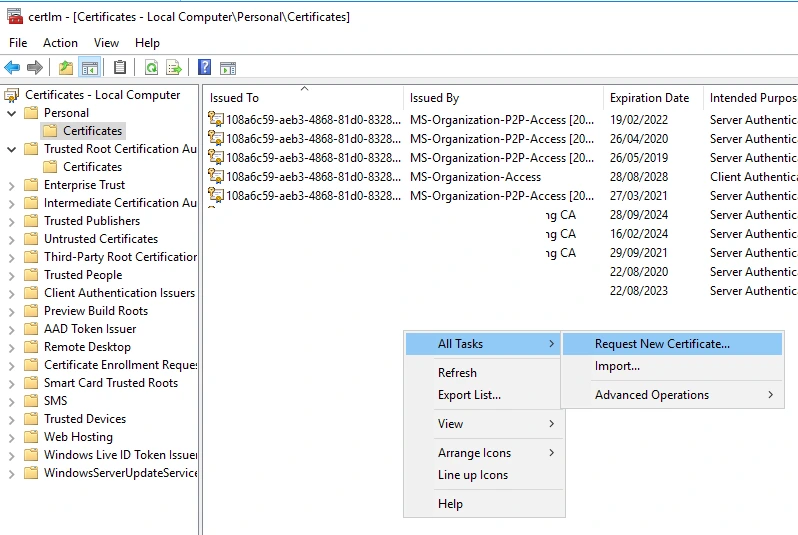
Open Manage Computer Certificates on the affected server.
-
Navigate to the certificate store used for authentication.
-
Right-click the appropriate certificate folder and select:
- Request New Certificate
-
If your organization uses certificate enrollment policies, follow the enrollment wizard.
-
Otherwise, manually create the certificate according to your PKI requirements.
2. Export the Certificate with the Private Key
-
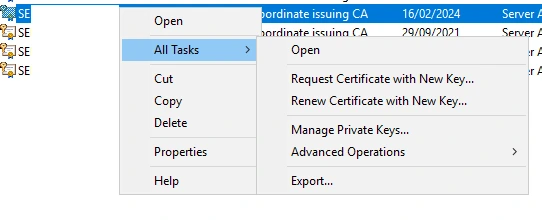
Once the certificate has been generated, right-click it and select:
- All Tasks > Export
-
Choose to export the certificate with the private key.
-
Follow the export wizard, specify a password, and save the certificate as a
.pfxfile.
3. Import the Certificate into SCCM
- Copy the exported certificate to your Primary Site Server.
- Open the SCCM Console and navigate to:
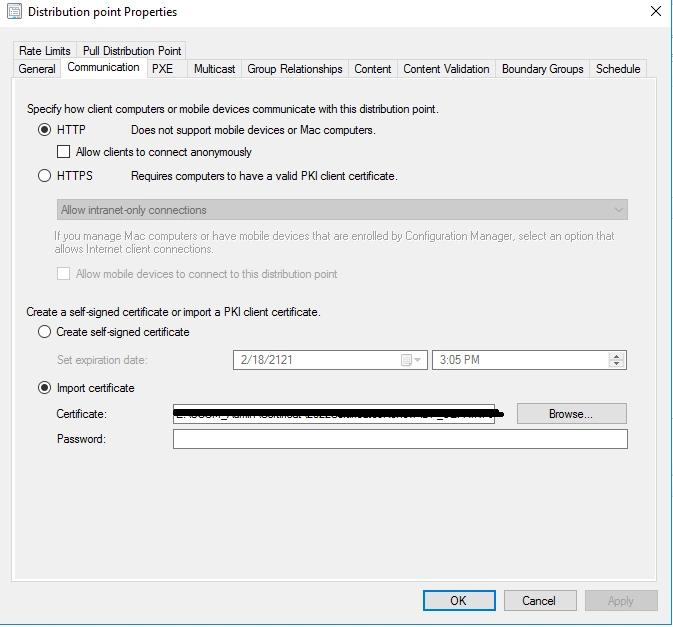
Administration > Servers and Site System Roles- Locate your Distribution Point and open its properties.
- Go to the Communication tab.
- Click Browse next to the Certificate field and select the exported
.pfxfile. - Enter the password configured during the export process.
- Click OK to save the configuration.
Expected Result
After completing these steps, PXE services should become operational again.
A new PXE boot attempt should successfully contact the Management Point and proceed normally with the deployment process.
Additional Recommendations
Although the fix itself is relatively straightforward, the impact of this issue can be significant in production environments.
To prevent similar incidents in the future:
- Monitor certificate expiration dates proactively.
- Implement SCCM alerts or PowerShell scripts to detect certificates nearing expiration.
- Generate a weekly report of certificates that will expire soon.
- Document the certificate renewal procedure in your operational runbook.
These preventive measures can significantly reduce the risk of unexpected deployment outages.
Error 0x80072f8f: Conclusion
Error 0x80072f8f during PXE boot is typically caused by an expired, missing, or incorrectly configured certificate.
While the issue is generally easy to resolve, it can immediately disrupt operating system deployment activities across the organization.
By proactively monitoring certificate lifecycles and maintaining proper PKI management practices, organizations can improve SCCM reliability and avoid unexpected service interruptions.